
Already know you have WordPress speed issues? I run only 3 free speed audits per week. If spots are open, you can request one at the end of this guide.
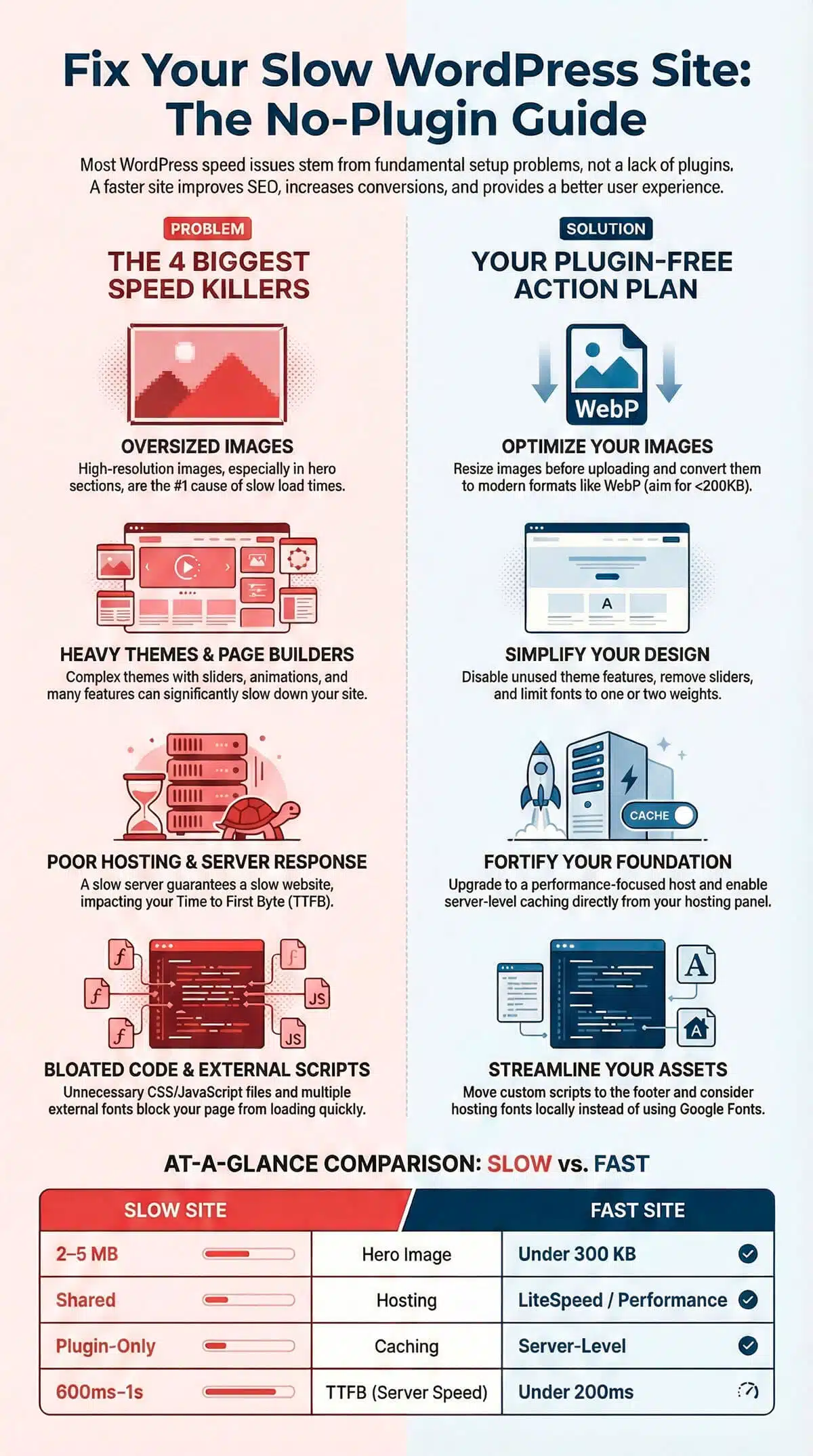
If your WordPress website is slow, you’re losing visitors, customers, and revenue every single day. Most people assume they need another plugin to fix the problem. In reality, most WordPress speed issues come from the way your site is set up, not from a lack of plugins.
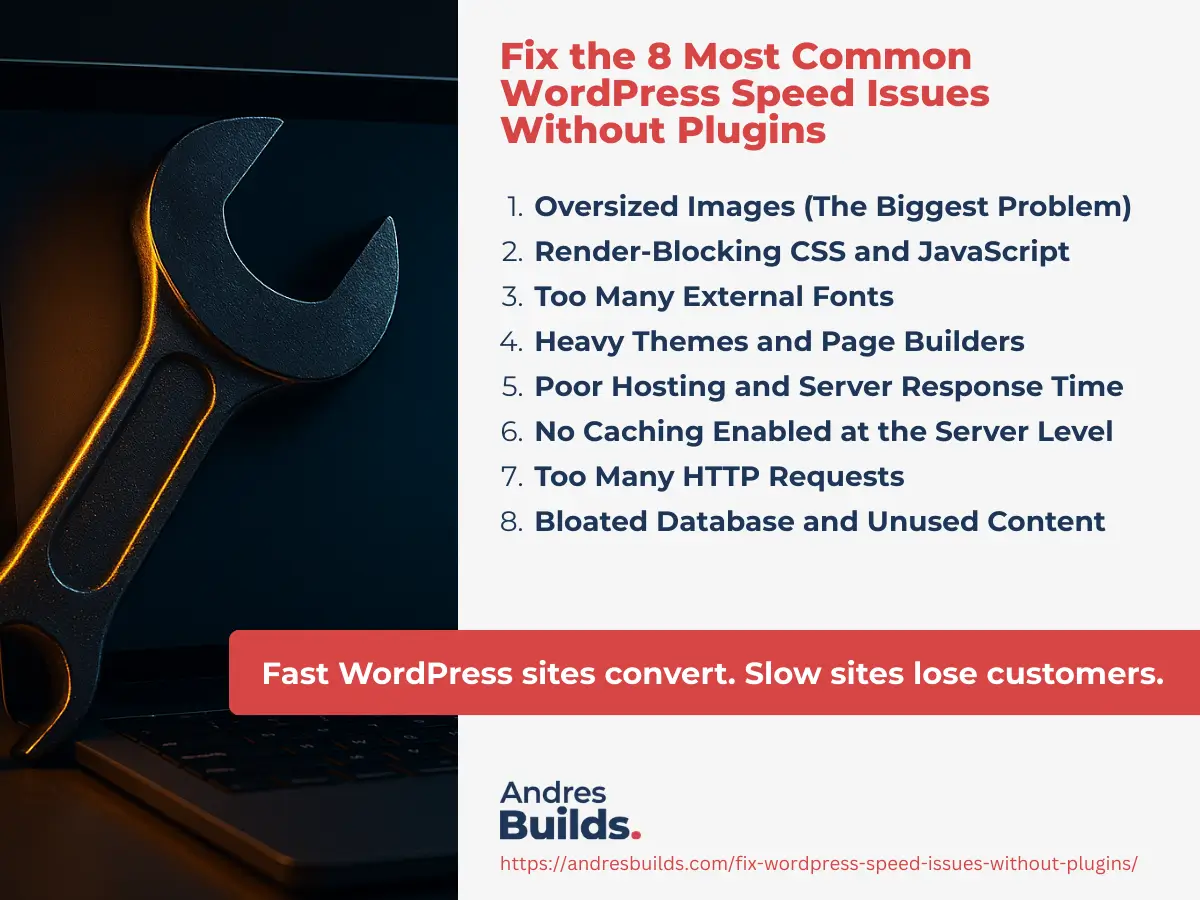
The truth is simple. The fastest WordPress sites are the ones with the fewest moving parts. Today you’ll learn how to fix the eigth most common WordPress speed issues without installing a single plugin.
These are the same fixes I use when optimizing sites for clients at Andres Builds. They work fast, they work safely, and they work every time.
What This Article Covers
- Why WordPress sites slow down
- The seven most common wordpress speed issues
- How to fix each issue without plugins
- What to improve at the server level
- A complete speed optimization checklist
- Internal guides and resources to go deeper
- A free WordPress speed audit offer
Who This Guide Is For
This guide is perfect for:
- Small business owners
- Service-based businesses
- Agencies
- Anyone managing a WordPress site
- Anyone frustrated by slow load times
What Are WordPress Speed Issues?
WordPress speed issues are performance problems that make your website load slowly. They are usually caused by oversized images, heavy themes, render-blocking files, slow hosting, too many HTTP requests, and poor server configuration. These issues increase load time, hurt SEO, reduce conversions, and create a bad user experience.
Key Takeaways
- Most wordpress speed issues come from settings, hosting, media, and scripts.
- You can fix the biggest problems without installing new plugins.
- A clean, lightweight site always performs better.
- Faster websites get more leads, higher SEO rankings, and better conversions.
- At the end you can request a free speed analysis.
Listen: Fix WordPress Speed Issues Without Plugins (Full Episode)
Why This Matters
A slow WordPress site kills conversions, increases ad costs, lowers SEO rankings, and reduces trust. If your site feels slow, you’re losing customers every day without realizing it.
How to Test Your WordPress Speed Issues (Before Fixing Anything)
Step 1: Test with Google PageSpeed Insights
Record LCP, INP, CLS, and TBT. Good benchmarks: LCP under 2.5s, INP under 200ms, CLS under 0.1.
Step 2: Test with GTmetrix
Check TTFB, request count, total page size. Good benchmarks: TTFB under 200ms, page size under 1MB.
Step 3: Run WebPageTest
Use mobile, slow 4G. Note First Byte, LCP, Speed Index.
1. Oversized Images (The Biggest Problem)
Oversized images are responsible for more slow WordPress sites than any other issue. If your hero banner is 3MB or your gallery images are full-resolution photos, your site will always feel slow.
Fix it without plugins:
- Resize images to the exact size they are displayed.
- Convert images to WebP using an offline tool like Squoosh.
- Reduce hero images under 200 KB whenever possible.
- Avoid uploading images straight from your phone.
For more image optimization techniques, read: Website Speed Optimization Guide
2. Render-Blocking CSS and JavaScript
WordPress themes often load more CSS and JavaScript than necessary. This delays rendering and hurts your Core Web Vitals.
Fix it without plugins:
- Remove unused theme features.
- Disable sliders, animations, and background videos.
- Turn off unnecessary features in your theme settings.
- Move custom scripts to the footer.
- Use your theme’s built-in performance settings.
If your theme loads unnecessary scripts, consider switching to a lightweight theme like GeneratePress or Astra.
3. Too Many External Fonts
Google Fonts are popular, but loading multiple weights or families slows down your site.
Fix it without plugins:
- Limit to one or two font weights.
- Host fonts locally (download the WOFF2 files).
- Use system fonts if possible.
- Replace fancy headings with CSS styling.
This alone can improve your Largest Contentful Paint.
4. Heavy Themes and Page Builders
Themes like Divi, Avada, or unoptimized Elementor templates can slow down your website significantly.
Fix it without plugins:
- Switch to a lighter page template.
- Use fewer widgets and heavy elements.
- Remove unused sections and animations.
- Replace sliders with static images.
- Use simpler text and layout blocks.
For a list of performance mistakes to avoid, read: Website Performance Techniques That Actually Work
5. Poor Hosting and Slow Server Response Time
If your hosting is slow, your website will always be slow. Server speed affects your Time to First Byte.
Fix it without plugins:
- Upgrade your hosting plan.
- Use LiteSpeed or high-performance hosting.
- Update PHP to version 8.2 or higher.
- Enable server-side caching in your hosting panel.
If your TTFB is above 600ms, hosting is the problem.
6. No Caching Enabled at the Server Level
Caching is one of the fastest ways to improve speed instantly.
Fix it without plugins:
- Turn on caching in your hosting settings.
- Use LiteSpeed server-side caching.
- Enable browser caching.
- Reduce dynamic elements on your homepage.
Caching reduces server workload and speeds up page delivery.
7. Too Many HTTP Requests
Tip
Use Chrome DevTools → Network tab to find your largest and slowest resources.
Quick Win
Remove unnecessary scripts and icons to cut request count.
Your theme, fonts, CSS files, icons, and scripts can generate dozens of requests.
Fix it without plugins:
- Remove social media widgets from the header.
- Reduce the number of icons and external libraries.
- Combine sections with multiple background images.
- Replace video backgrounds with static images.
- Avoid embedding heavy scripts above the fold.
If you want to see what slows down your pages, run a waterfall test with GTmetrix.


Bonus: Three Hidden WordPress Speed Killers
Advanced Hosting Optimizations
- Enable HTTP/2 or HTTP/3
- Turn on OPcache
- Use persistent object caching
- Use PHP 8.2+
- Aim for TTFB under 200ms
1. WooCommerce Scripts Loading Everywhere
Disable WooCommerce resources on non-product pages.
2. Tracking Scripts Running Too Early
Move analytics scripts to the footer.
3. Embedded YouTube Videos
Replace videos with a thumbnail preview and lazy-load them.
These three changes alone can reduce load time dramatically.
8. Bloated Database and Unused Content
WordPress stores post revisions, auto drafts, spam comments, transients, and leftover plugin data that slow your database.
Fix it without plugins:
- Open phpMyAdmin
- Clean wp_posts, wp_postmeta, wp_options, wp_commentmeta
Warning: Always back up before cleaning your database.
WordPress Speed Issues Checklist (No Plugins Needed)
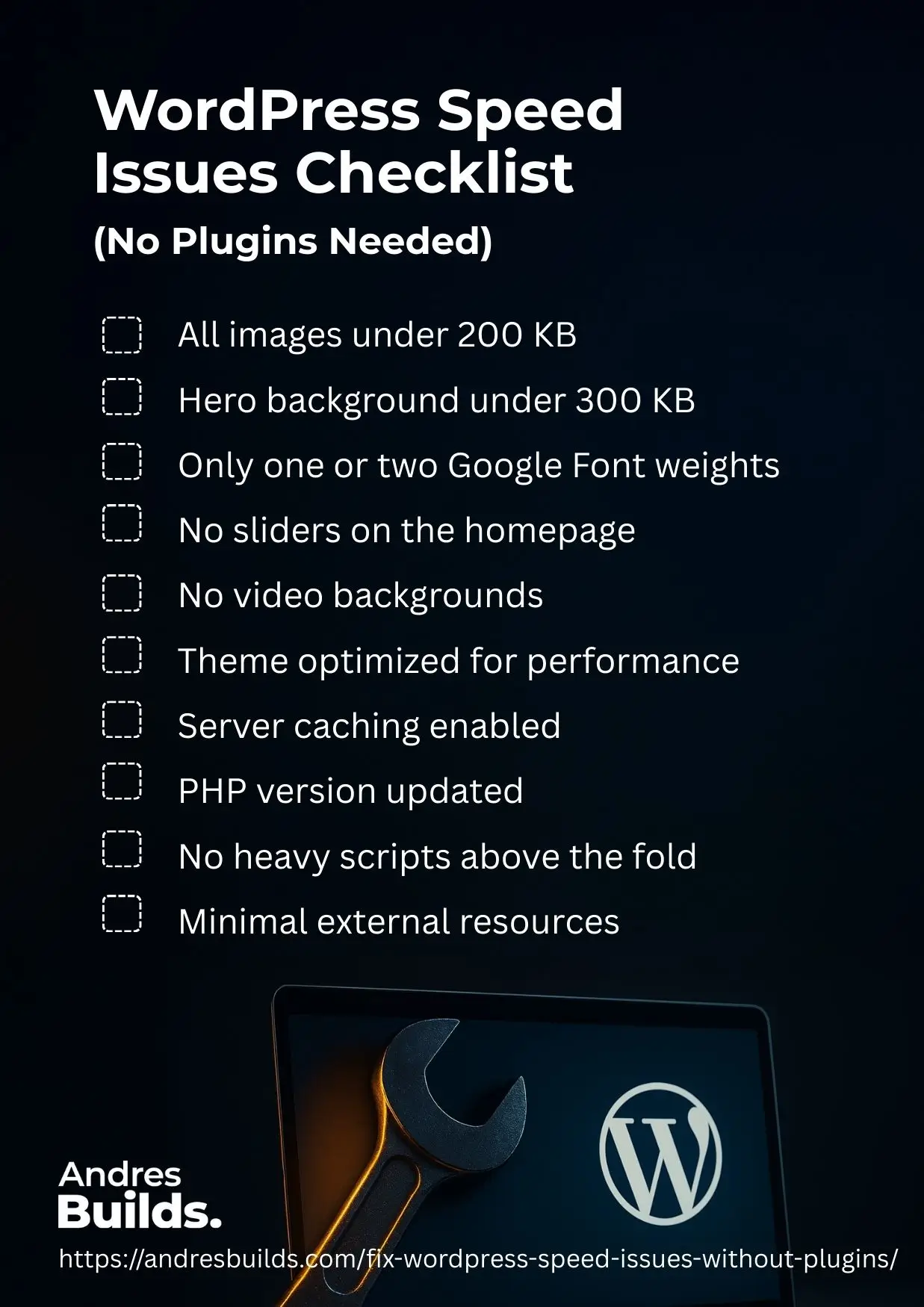
- All images under 200 KB
- Hero background under 300 KB
- Only one or two Google Font weights
- No sliders on the homepage
- No video backgrounds
- Theme optimized for performance
- Server caching enabled
- PHP version updated
- No heavy scripts above the fold
- Minimal external resources
- Clean, simple layout
Fast vs Slow WordPress Setup (At a Glance)
| Element | Slow Site | Fast Site |
|---|---|---|
| Hero image | 2–5 MB | Under 300 KB |
| Fonts | 4+ families | 1–2 locally hosted |
| CSS | Multiple heavy files | Minimized |
| JS | Above the fold | Deferred |
| Hosting | Shared | LiteSpeed |
| Caching | Plugin only | Server-level |
| CDN | None | Global |
| DB | Bloated | Clean |
| TTFB | 600ms–1s | Under 200ms |
FAQs about WordPress Speed Issues
Why does WordPress take so long to load on mobile?
Oversized images and render-blocking JavaScript are the main causes.
Does a CDN help with WordPress speed issues?
Yes. A CDN reduces latency and improves response times.
What causes most WordPress speed issues?
Oversized images, heavy themes, too many scripts, and slow hosting.
Can I fix WordPress speed issues without plugins?
Yes. Most slowdowns are caused by settings, media, and scripts.
How fast should my website load?
Under three seconds. Under two seconds is ideal.
Do lightweight themes improve speed?
Yes. Clean, minimal themes improve performance.
Does hosting affect speed?
Absolutely. A slow server guarantees a slow website.
DIY vs Done-For-You WordPress Speed Fixes
| Task | DIY | Done For You by Andres Builds |
|---|---|---|
| Image optimization | Time-consuming | Done in under 24 hours |
| Script cleanup | Requires coding | Fully handled for you |
| Hosting evaluation | Confusing | Expert recommendation |
| Speed reporting | Basic | Professional-grade video breakdown |
| Core Web Vitals | Hard to fix | Optimized properly |
Real Result
A Miami-based service business reduced load time from 5.2 seconds to 1.8 seconds after optimizing 15 images, removing heavy scripts, and cleaning unused CSS. Form submissions increased 31 percent in two weeks.
If your WordPress site feels heavy, I can identify the exact causes.
What Happens After You Request Your Free Audit
You’ll receive within 24 hours:
- A full video walkthrough
- Core Web Vitals breakdown
- Root-cause analysis
- A plan to reach under 2 seconds
- A transparent quote if you want help
Conclusion: Want Me to Fix Your WordPress Speed Issues for Free?
If you want a full performance report and a video breakdown of everything slowing down your WordPress site, I can run a complete audit for free.
I run a limited number of free audits per week.
You’ll get:
- A full performance report
- A conversion impact analysis
- A Core Web Vitals breakdown
- A clear plan to get under three seconds
Request Your Free Website Audit
Fast WordPress sites convert. Slow sites lose customers. Let’s fix yours.