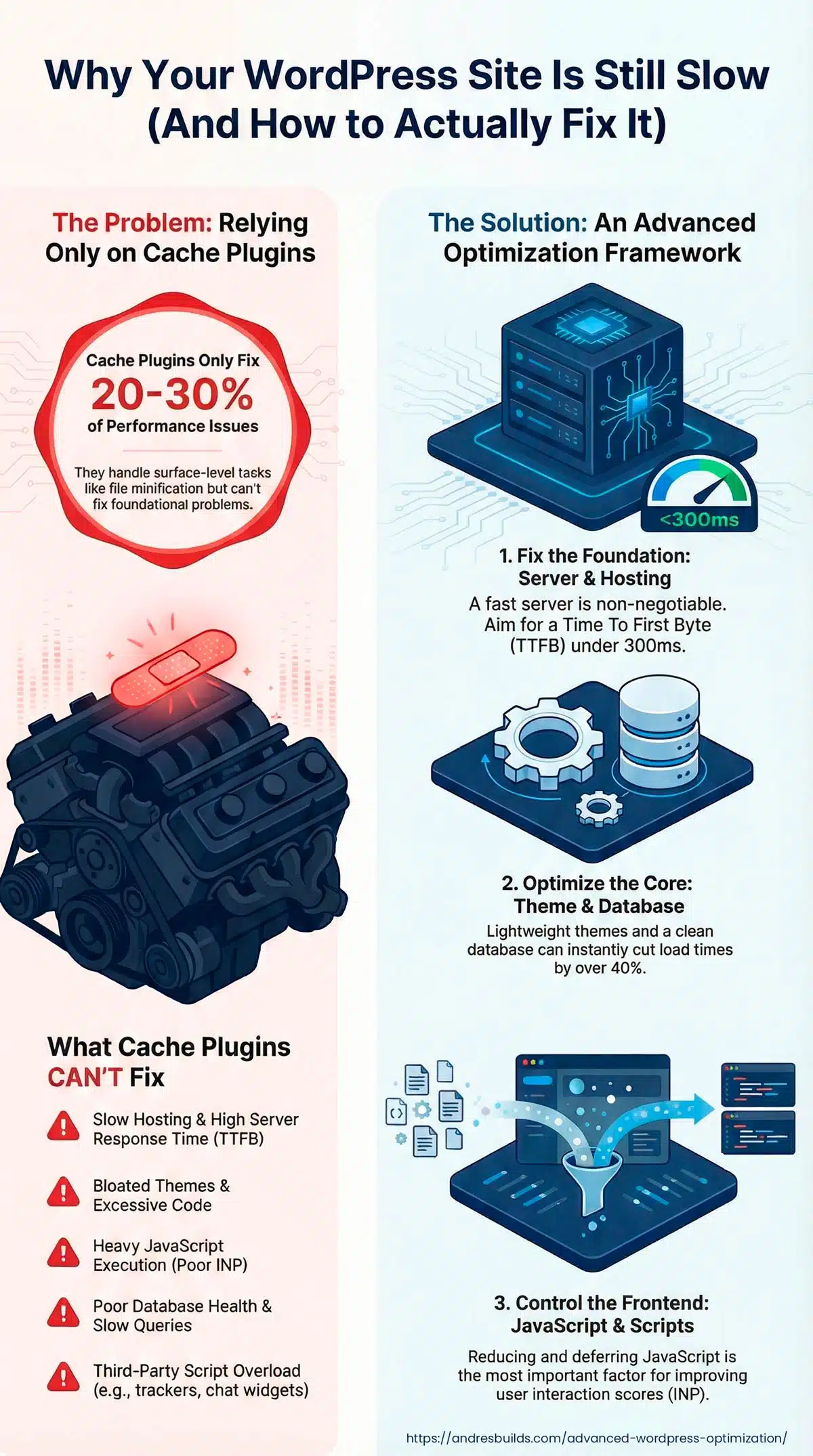

Most WordPress speed tutorials give the same advice: “Install a cache plugin.” That helps… but only a little. Cache plugins typically fix 20–30% of performance issues. The real bottlenecks live deeper—in your hosting setup, database, theme architecture, JavaScript execution, CDN configuration, background tasks, and Core Web Vitals.
If you want your website to load quickly for real users and perform consistently, as Google expects, you need to go well beyond caching. This guide teaches you the advanced optimization framework used by professionals to achieve sub‑1.5s load times, stable Core Web Vitals, and performance that scales.
Listen: Advanced WordPress Optimization: Beyond Cache Plugins (Full Episode)
Who This Guide Is For
- Website owners whose site is still slow even after installing a cache plugin
- Agencies managing multiple WordPress installs
- WooCommerce, membership, LMS, and high‑traffic sites
- Anyone serious about Core Web Vitals—not just lab scores
Key Takeaways
- Cache plugins only fix a small portion of WordPress performance issues.
- Serious performance comes from server, CDN, database, JS, theme, and background task optimization.
- Google ranks pages based on field data, not synthetic scores.
- INP and JavaScript execution matter more than ever.
- Lightweight themes and optimized hosting stacks outperform expensive plugins.
- Real optimization is a framework, not a tool.
Why Cache Plugins Only Fix 20–30% of Your Problems
Cache plugins handle surface‑level enhancements:
- Page caching
- File minification
- Compression
- Browser caching
But they cannot fix:
- Slow hosting (TTFB)
- Bloated themes
- Heavy JavaScript execution
- Poor database health
- Unoptimized images
- Slow background tasks
- Third‑party script overload
Even with WP Rocket or LiteSpeed Cache, your real‑world users may still suffer.
For more context on why speed impacts revenue, see: Why Website Speed Matters
The Real Bottlenecks Google Actually Cares About
Google doesn’t judge your site based on your plugin setup. They judge you based on what users actually experience.
1. Hosting + Server Response Time (TTFB)
This is the foundation of everything. Aim for under 200–300ms.
2. JavaScript Execution (INP)
The new most important Web Vital. Too much JS slows interactions.
3. Database Performance
Autoloaded options, transients, and slow queries cripple the backend and frontend.
4. Theme Architecture & DOM Size
Some themes load megabytes of CSS + JS whether you need them or not.
5. Core Web Vitals (LCP, INP, CLS)
Google’s ranking signals are predictable if you optimize for them.
Learn more: Core Web Vitals Optimization Guide and https://web.dev/vitals/
The Advanced Optimization Framework
The system used by performance experts to get stable, real‑world gains.
Step 1: Measure Website Speed Correctly
Never start optimizing without the right data sources.
Use:
- PageSpeed Insights (field + lab data)
- CrUX Dashboard (real‑world history)
- WebPageTest (waterfall + request timing)
- GTmetrix (filmstrip, structure)
Full guide: Top Free Tools to Test Website Speed and Google PageSpeed Insights Impact
For a complete performance workflow, see: Website Speed Optimization Guide
Step 2: Fix Server-Level Issues
Choose modern hosting with:
- LiteSpeed or NGINX
- Redis object caching
- NVMe SSD storage
- PHP 8.2+
- Dedicated resources
Increase PHP Workers
A rule of thumb:
- Small brochure site: 2–4 workers
- WooCommerce: 6–10 workers
Enable OPCache
Precompiles PHP files for faster execution.
Reduce TTFB
If TTFB is above 400ms, fix hosting first.
Step 3: Add Proper CDN & Edge Caching
This separates amateurs from pros.
When a CDN helps:
- You have global traffic
- Your images are heavy
- You serve video, PDFs, or big assets
When it doesn’t:
- Your audience is 100% local
- Your host already provides full edge caching
Advanced CDN Techniques
- Full‑page HTML caching
- Origin Shield
- Tiered caching
- Image optimization at the edge
Step 4: Optimize the Theme and Builder
This is the #1 performance killer.
Fastest options:
- Block themes (Twenty Twenty‑Four, Ollie, Blockpress)
- GeneratePress, Astra
Slowest options:
- Divi
- WPBakery
- Heavy Elementor templates
Reduce DOM Bloat
Target fewer than 1,500 DOM nodes.
For additional optimization strategies, see: Website Performance Techniques That Actually Work
Step 5: Clean and Optimize the Database
This is essential for stable performance.
Clean:
- Autoloaded options larger than 500KB
- Expired transients
- Orphaned metadata
- Overgrown tables
Tools:
- Query Monitor
- WP‑Optimize
- WP‑CLI for serious cleanup
Step 6: Optimize Background Tasks & WP‑Cron
Most slow WordPress sites suffer from background job overload.
Fix:
- Disable WP‑Cron on page load
- Use a real Linux cron job
- Schedule backups at low‑traffic hours
- Limit automated emails / WooCommerce syncs
- Delete abandoned scheduled events
This alone can stabilize monthly performance.
Step 7: Remove Unused Scripts and Styles
Almost every theme loads everything everywhere.
Use:
- Perfmatters
- Asset Cleanup Pro
- Manual dequeueing
Prioritize removing:
- Google Tag Manager bloat
- Chat widgets
- YouTube embeds
- Facebook pixel
These crush your INP.
Step 8: Optimize Images the Right Way
Advanced image workflow:
- Convert to AVIF
- Use an Image CDN
- Preload the LCP image
- Set proper responsive image sizes
Image optimization also appears in: Website Speed Optimization Checklist
Step 9: Improve Core Web Vitals Inputs
LCP
- Preload the LCP image
- Reduce TTFB
- Remove render‑blocking resources
INP
- Reduce JS bundle size
- Delay third‑party scripts
- Remove jQuery dependencies
CLS
- Always set width/height
- Preallocate space for embeds


Special Notes for WooCommerce & Dynamic Sites
Dynamic sites cannot rely on full‑page caching.
Priorities:
- Optimize object cache
- Reduce slow queries
- Tune background tasks
- Exclude cart/checkout/account from caching
WooCommerce stores benefit massively from this.
Theme Performance: The Hidden Killer Your Cache Plugin Can’t Fix
Slow themes load:
- Huge CSS files
- jQuery dependencies
- Unnecessary scripts
Switching to a block theme often instantly cuts load time by 40%+ or more.
Hosting Stack: Why Most Sites Are Slow Before WordPress Even Loads
If hosting is slow, nothing else matters.
Signs you need a better host:
- TTFB > 400ms
- CPU throttling
- PHP worker exhaustion
- Random performance spikes
Good hosting solves half your issues instantly.
Database Cleanup Your Site Needs
Each plugin adds database overhead.
Clean:
- Unused autoloaded options
- Orphaned tables
- Overgrown transients
- Heavy-scheduled events
The JavaScript Execution Problem Nobody Talks About
Even cached JS must execute.
Fix:
- Reduce animations
- Remove unnecessary scripts
- Break up large JS bundles
- Defer non‑critical JS
- Reduce dependencies on jQuery
This is the key to improving INP.
When Rebuilding Is Better Than Optimizing
Rebuild if:
- Your theme is outdated
- Multiple heavy plugins control layout
Common Mistakes That Kill Performance
Mistake 1: Relying only on cache plugins
They improve lab scores but barely help real-world users.
Mistake 2: Ignoring server-level bottlenecks
Poor hosting, slow TTFB, and limited PHP workers wreck performance before WordPress even loads.
Mistake 3: Using heavy themes and builders
Divi, WPBakery, and bloated Elementor designs generate huge CSS/JS files and excessive DOM size.
Mistake 4: Not controlling third‑party scripts
Tag Manager, chat widgets, and tracking scripts destroy INP when left unchecked.
Mistake 5: Overlooking background processes
WP‑Cron, backups, and WooCommerce tasks can overload the server.
Monitoring & Observability (The Missing Step Most Sites Skip)
Advanced optimization isn’t complete without ongoing monitoring. Even a fast site slows down over time due to updates, plugin changes, or traffic spikes.
Set Up Monitoring for Real‑World Reliability
- New Relic – deep application performance, query timing, and PHP execution
- Kinsta APM or similar tools – plugin-level bottlenecks
- Cloudflare Analytics – edge performance + traffic insights
- CrUX / Web Vitals tracking – track actual user performance trends
- UptimeRobot – detect outages instantly
What to Watch Monthly
- TTFB stability
- INP fluctuations from new scripts
- LCP regressions from new media
- Database growth and autoload bloat
- Spike in background tasks
Why Monitoring Matters
Website optimization is not a one‑time task. Monitoring:
- Prevents regressions
- Catches plugin issues early
- Keeps Core Web Vitals stable
- Protects your ad spend
- Maintains conversion rates
FAQs About Advanced WordPress Optimization
What is advanced WordPress optimization?
It refers to server-level, CDN-level, database-level, and theme-level techniques that go far beyond basic caching plugins.
Why isn’t a cache plugin enough?
Because cache plugins can’t fix slow hosting, heavy JavaScript execution, a bloated theme, database issues, or background tasks.
Do I need a CDN?
If your traffic is global, your assets are large, or your host doesn’t offer full-page edge caching — yes, absolutely.
How do I improve INP?
Reduce JavaScript execution, delay heavy third‑party scripts, remove unused scripts, and cut jQuery dependencies.
When should I rebuild instead of optimizing?
When your theme is outdated, the DOM size is huge, multiple plugins control layout, or performance is inconsistent even after optimization.
Want a Professional to Optimize Your WordPress Site?
Most WordPress sites lose money because they rely on cache plugins and never address the real bottlenecks.
If you want real performance, the kind that Google rewards and users actually feel — I can run a free Website Speed & Conversion Audit (worth $800) and show you exactly what’s slowing your site down.
You’ll receive:
- Complete server analysis
- CDN & caching evaluation
- Theme + builder performance review
- Database diagnostics
- Real-user Web Vitals (field data)
- Clear, actionable fixes
If you want a website that loads fast, ranks higher, and converts consistently, request your free audit today.